
OpenPort
Dev Manager for macOS
Stop juggling terminal tabs to run your dev servers.
It's 3pm. You have eleven terminal tabs open. Three of them are running dev servers. The rest are dead, dying, or you forgot what they were doing twenty minutes ago. Port 3001 is taken — was it Vite from earlier or your backend from this morning? You crack open Activity Monitor, search for node, and start guessing.
OpenPort is one window that knows what's running, what's bound where, and what's waiting to start. Hit play, hit stop, get on with it.
How it works
One folder, every project
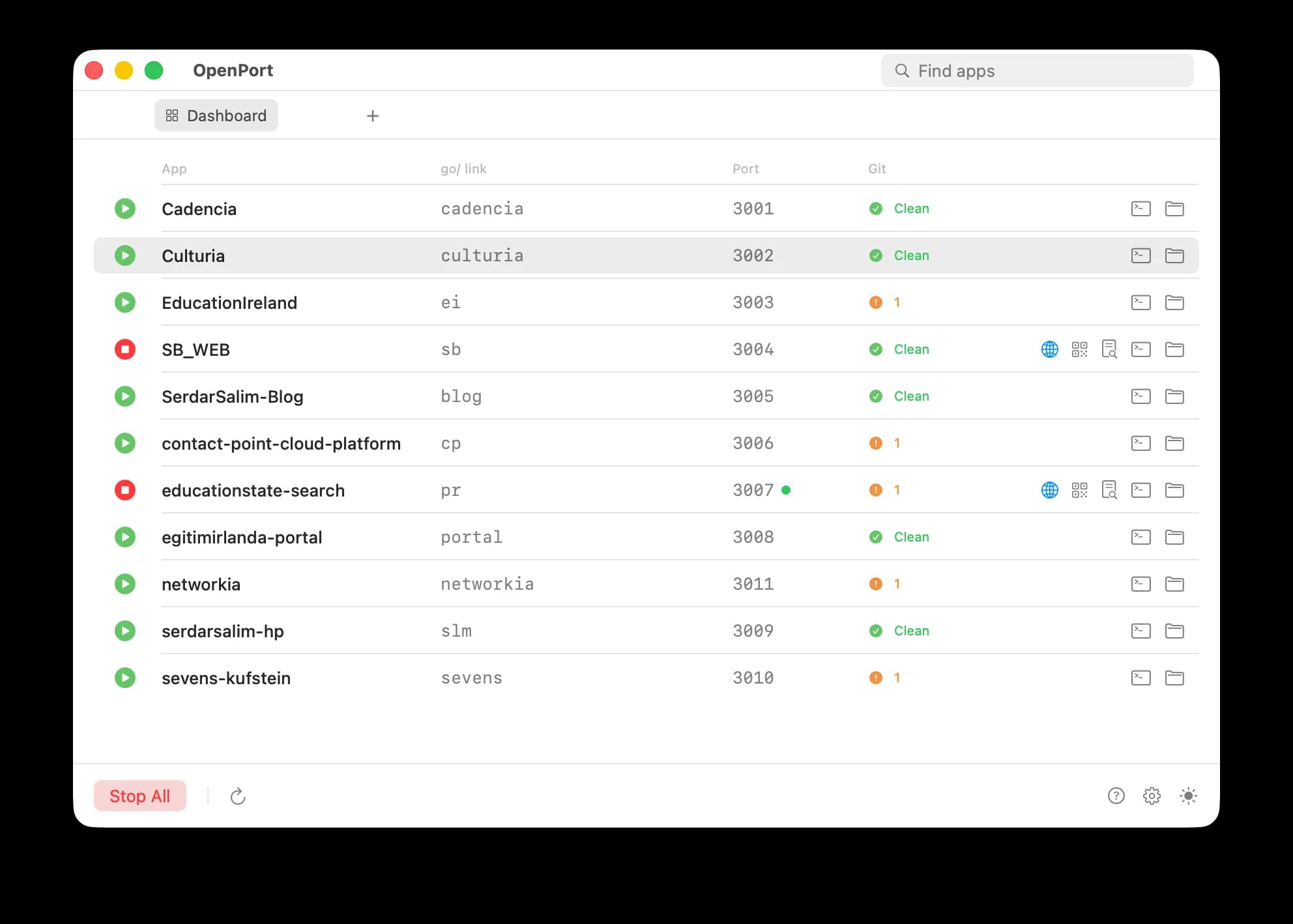
Point it at the folder that holds your projects. It finds anything with a dev script and lists them. Click play to start, click stop to stop. Each row shows the port, git status, and shortcut buttons for the browser, VS Code, Finder, and a QR code so you can test on your phone over Wi-Fi.
Live port detection
OpenPort sees what's actually listening — even servers you started in a terminal hours ago, even when they bind to a different port than expected. When something else is blocking the port you wanted, the badge turns orange; click play and OpenPort offers to kill it for you. No more lsof -ti :3000 | xargs kill.
Terminals built in
Click the terminal icon on a row. A real shell tab opens inside OpenPort, cd'd into the project. Open as many as you need, switch between them with one click, search across the scrollback right from the title bar. Theme and font size in Settings — Solarized, Dracula, Nord, system, whatever.
Live logs without leaving the app
Every running app has a logs viewer with stdout, stderr, search, and auto-scroll. The same buffer that used to live in a terminal you couldn't type into — now it's a panel you can resize, copy from, and clear.
From the menu bar
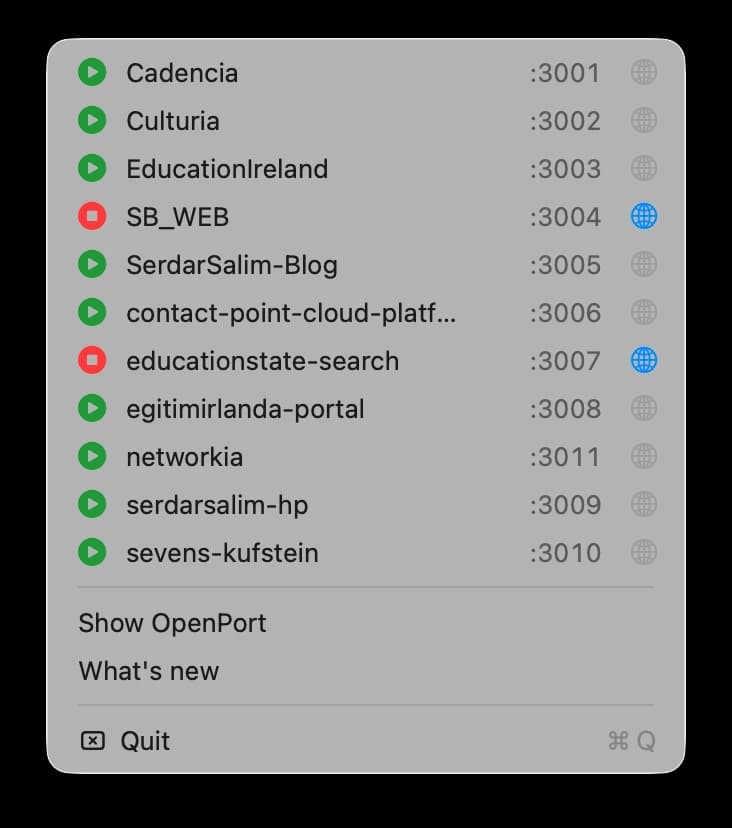
Start any server without opening the main window. Click the globe to jump straight to its browser tab.
If macOS blocks opening
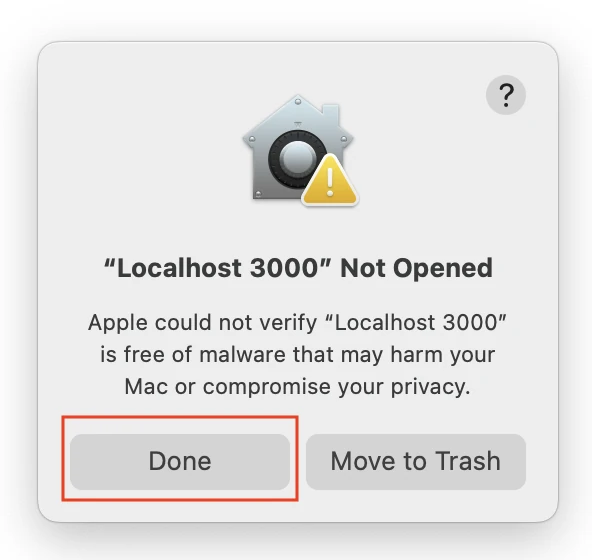
OpenPort is unsigned, so macOS warns you the first time. Three steps to get past it.
1.Download and unzip the app, then try opening OpenPort.app once.
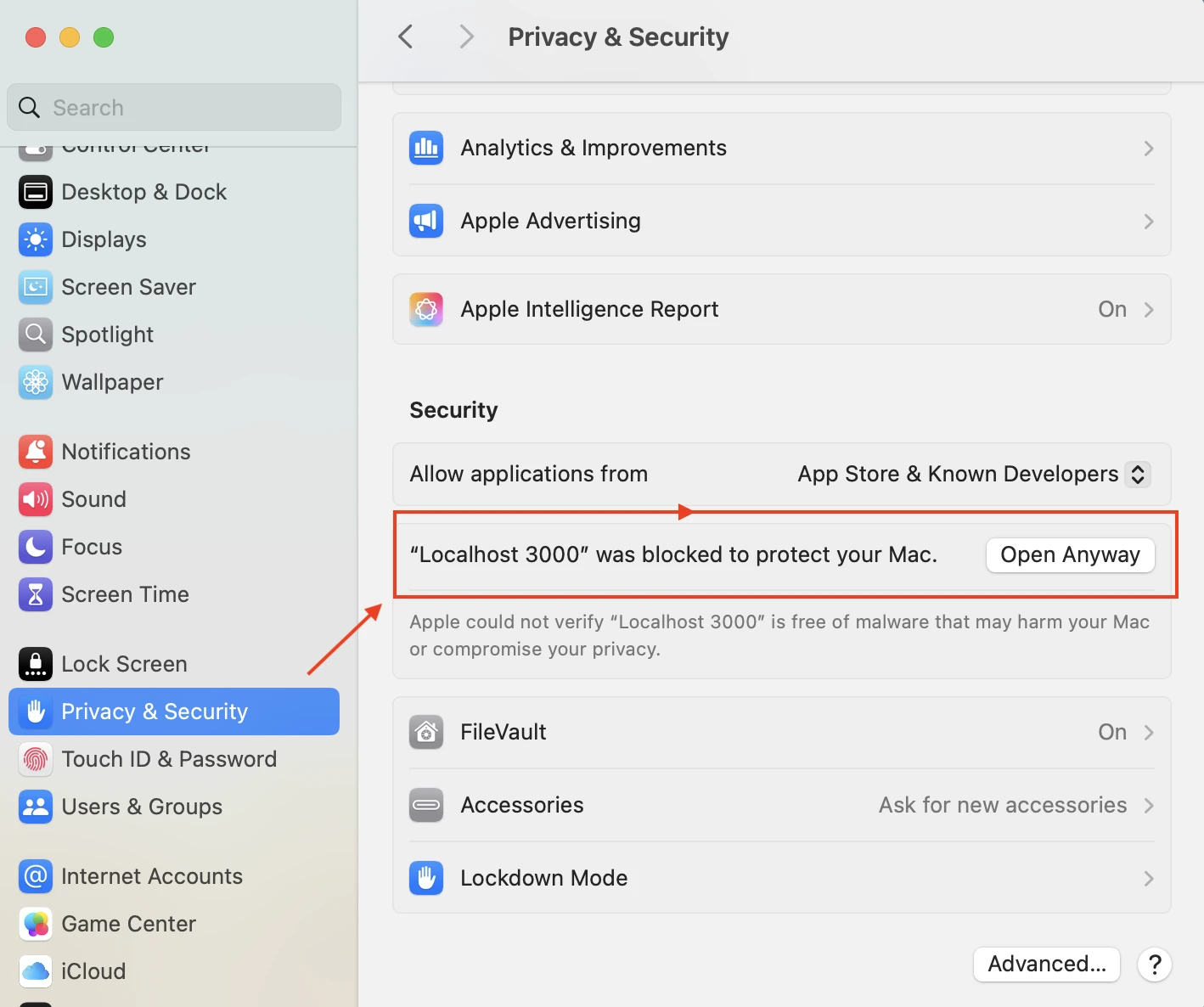
2.Open System Settings → Privacy & Security.
3.Find the blocked app message and click Open Anyway, then confirm.